
Help centre
Add your products and prices
Add what you sell once, and Nfelia uses it everywhere: on your website, on orders and invoices, and in your stock count.
To add a product in Nfelia, tap +, then Add product. Add photos, a name and a selling price, and how many you have, then tap Add to catalogue. To add many products at once, open More › Catalogue, tap Add many items at once, and type them in one after another or import a spreadsheet.
Where your products live
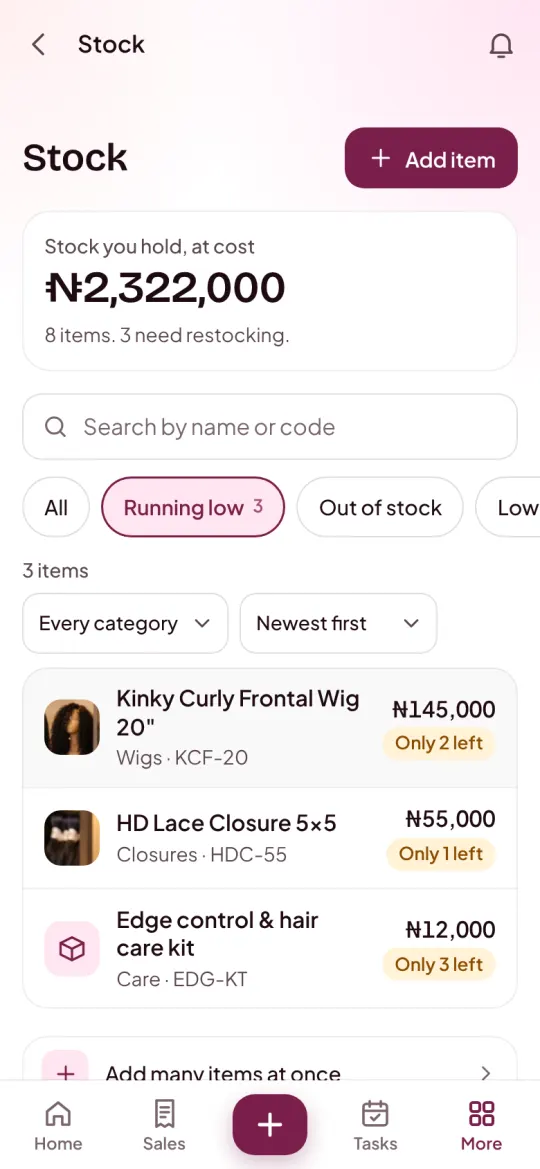
Everything you sell lives in your Catalogue: products you keep in stock and services you do for people. Open it from More › Catalogue on a phone, or Catalogue in the menu on a computer.
At the top you see Stock you hold, at cost and how many items need restocking. Below, each item shows its price and stock, like Only 2 left or Out of stock. The chips above the list show Running low, Out of stock, Services and more.
Add one item
Open the form
Tap + at the bottom of the screen, then Add product (Add service if you only sell services). Or tap Add item at the top of the Catalogue.
Add photos
Under Photos, tap Add photos and pick one or more: JPG, PNG or WebP, up to 20 MB each. The first one is the cover on your website. You can make another photo the Cover later.
Say whether it shows on your website
Show on my shop is on for a new item. Turn it off for something you only put on invoices and orders.
Name it
Under About it, type the Name the way customers ask for it, like Body wave bundle, 18 inches. A Category groups it on your website. A Description shows on your website, invoices and quotes.
Set the price
Under Price, type the Selling price. Add the Cost price too, what it costs you, and Nfelia shows your margin: your profit as a share of the price.
Say how many you have
Under Stock, type How many you have now, choose what it is Counted in (pieces, bundles, yards, kg and more), and set Remind me at: Nfelia warns you when stock falls to that number. For work like a styling or a repair, turn on This is a service instead: there is no stock to count.
Add options, if it has them
Tap Add options, like length or colour. Name the option, like Length, and add each choice, like 16 inches. Turn on This changes the price if a choice costs more or less, and type how much each adds or takes off.
Tap Add to catalogue
You see … added to your catalogue and the item's own page, with its price, margin, stock and Stock history. If Show on my shop was on, it is on your website already.
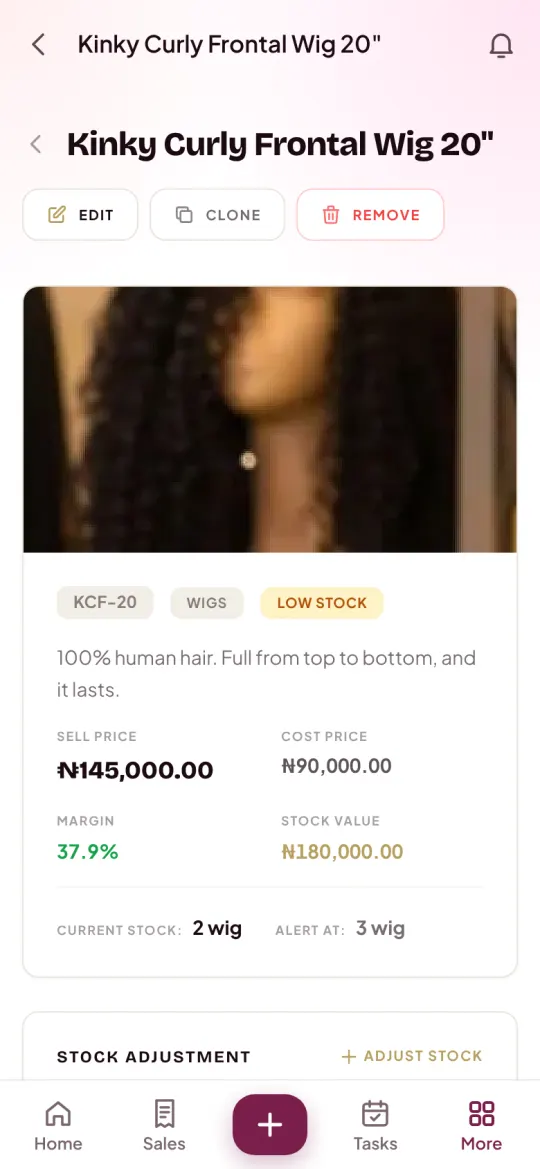
An item code is made for you, like ANK-0012: the first three letters of the name and a number. Under Item code, turn off Make the code for me to type your own. If your business sells services, a Bookings section lets customers book the service on your website: see how bookings work.
Add many items at once
Open More › Catalogue and tap Add many items at once at the bottom of the list. In an empty catalogue, tap Or add many at once. You land on Catalogue Setup, with two ways to add many items:
Quick Add Items: type them one after another
Open Quick Add Items. Type the Name, a Category, the Sell Price, Cost Price and Stock Qty, and pick the Unit. Tick Service (no stock) for a service. Tap Add & Continue: you see … added, and it joins Recently Added on the same screen. Open Quick Add Items again for the next one.
Bulk Import (CSV): bring in a spreadsheet
Best when your price list is already in Excel or Google Sheets. The next section shows how.
Product Categories on the same screen suggests categories for your kind of business. A category is made the moment you give it to an item, so there is nothing to set up first.
Import a spreadsheet
Make the sheet
In Excel or Google Sheets, put these words in the first row, one per column, then one item per row below. Only Name is needed.
Save it as a CSV file
In Google Sheets: File › Download › Comma-separated values (.csv). In Excel: Save As, then CSV (Comma delimited).
Import it
On Catalogue Setup, open Bulk Import (CSV), tap Choose CSV file..., pick your file and tap Import.
Check the result
You see how many were imported and how many were skipped, like 48 products imported. 2 skipped (duplicates or empty rows). Your new items are in the Catalogue and on your website. Add photos to each from its page: tap the item, then Edit.
| Column | Needed | Example | What it is |
|---|---|---|---|
| Name | Yes | Ankara fabric | Each name once. A name already in your catalogue is skipped. |
| SKU | No | ANK-0012 | Your item code. Left empty, Nfelia makes one. |
| Category | No | Fabrics | Groups items on your website. |
| Description | No | Premium quality ankara | Shows on your website, invoices and quotes. |
| Sell Price | No | 3500 | A plain number: no commas, no currency sign. |
| Cost Price | No | 2000 | What it costs you. Used for your margin and stock value. |
| Stock Qty | No | 50 | How many you have now. |
| Unit | No | yards | How you count it, like pcs, bundles or kg. |
| Is Service | No | No | Yes for a service, which has no stock. |
Want to see the columns filled in? In the Catalogue, tap Download the list as a spreadsheet: you get every item you have, in the same columns.
Choose what shows on your website
Every item in your Catalogue has a small Shop switch on its row. On, it shows on your website. Off, it stays in your catalogue and on invoices, quotes and orders, but your website doesn't show it. The same switch is Show on my shop on the item's page, and the ticks under Everything you sell in Shop Studio. It saves at once: there is nothing to publish.
- To see what is off your website, tap the Not on your shop chip in the Catalogue.
- Hide on an item's page takes it off your website and out of the lists you pick from on orders. Show again brings it back.
- Shop Studio can show items with no stock left as Sold out. See your website.
Change an item later
Tap the item in the Catalogue to open its page. Tap Edit to change its photos, name, price or options, then Save changes. A new price shows on your website within a few minutes; invoices already sent keep their price.
For stock, use Add stock when goods come in, Take out for damaged or used goods, or Set the count after you count the shelf. Sales take stock off by themselves. The guide to tracking stock explains more. Clone makes a copy to edit, handy for the same item in another size.
Common problems
It says "CSV must have a Name column"
The first row of your file needs a column called Name. If it is there and you still see this, the file was saved as "CSV UTF-8". Save it again as CSV (Comma delimited) in Excel, or download it from Google Sheets as Comma-separated values, and import it again.
My prices came in wrong, like 3 instead of 3,500
Type prices as plain numbers in the sheet: 3500, with no commas, spaces or currency sign. Fix the items that came in wrong from their page (Edit), or delete them and import a corrected file.
Some rows were skipped
A row is skipped when its Name is empty, when an item with the same name is already in your catalogue, or when a price or stock is below zero. The message after the import says how many and why.
It says "A product with this name already exists"
Each name is used once. Add what makes it different, like the size, or use Add options, like length or colour on the one item.
An item is not on my website
Check its Shop switch is on and that it is not hidden. If Shop Studio shows sold-out items and its stock is 0, it shows as sold out until you add stock. Things people book show under Bookings on your website, not in the bag.
A photo did not upload
Use a JPG, PNG or WebP photo up to 20 MB. On a weak network, try again on Wi-Fi or a stronger signal.
Still stuck? Send us your price list on WhatsApp and we will help you get it in.