
Help centre
Track your stock and know when to restock
Your stock lives in the Catalogue. Open an item and tap Add stock when goods come in, or Take out when some leave without a sale. Sales take stock off by themselves, and Nfelia warns you when an item gets down to the number you choose.
This guide is about keeping the count right. To put your items into Nfelia in the first place, one by one or many at once, read how to add your products.
See what you have
Open the Catalogue
On a phone, tap More at the bottom, then Catalogue. On a computer, choose Catalogue in the menu on the left.
Read the top line
You see Stock you hold, at cost: what everything on your shelves cost you. Under it, how many items need restocking, or Nothing is running low.
Filter the list
Tap a chip: Running low, Out of stock, Low or out or In stock. Each item shows a tag such as Only 2 left or Out of stock. The sort menu has Least in stock first, which makes a good shopping list.
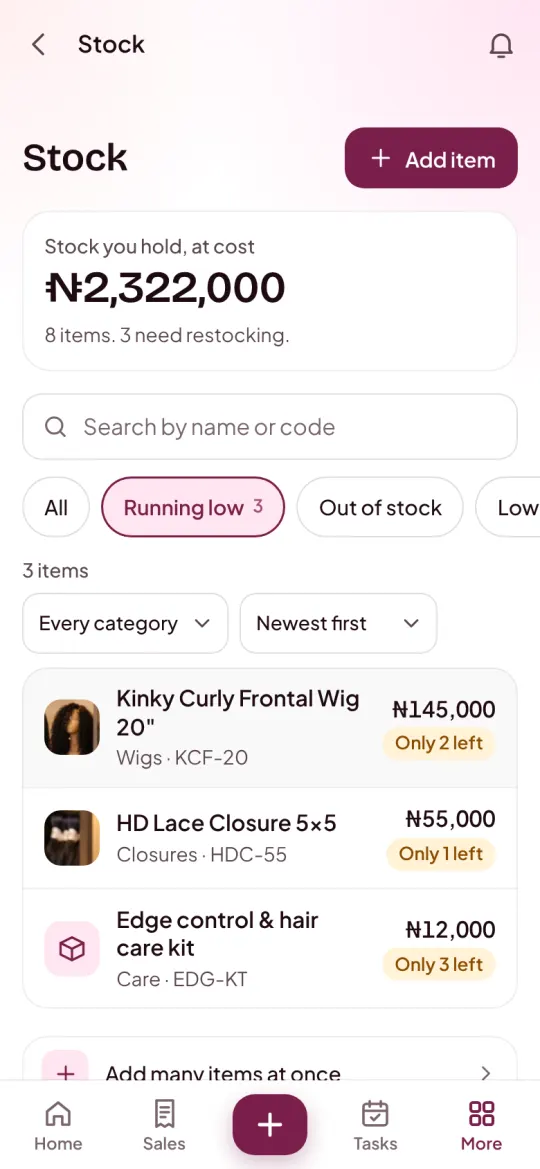
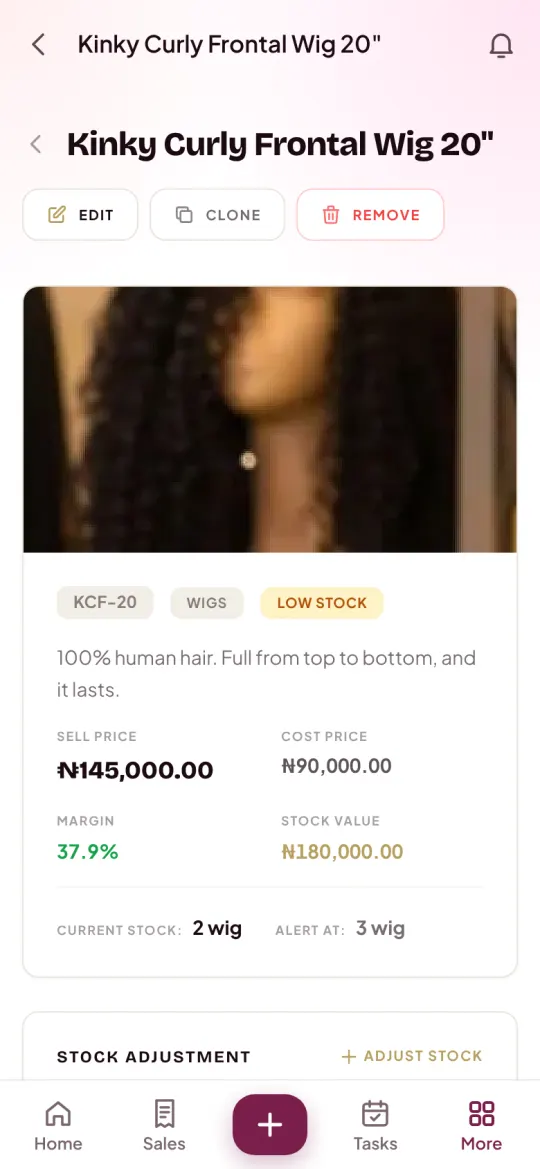
The screens are from Ivie Luxe Hair, an example business.
Add stock when goods come in
Open the item
Tap it in the Catalogue. Its page shows In stock with the count, what it is worth at cost, and the number at which you get a reminder to restock.
Tap Add stock
A sheet opens with Add stock already chosen.
Type how many came in
Type the number in How many came in. The sheet reminds you how many you have now.
Check the cost
Cost each is what you paid for one. It is filled with the item's cost price; change it if this delivery cost more or less. It is optional.
Save
Add a note if you like, such as the supplier's name, and tap Add stock. You see a message like "Added 10 bundles. You have 18 bundles of Body Wave now."
Bought it from a supplier? Record the purchase as an expense with the category Stock purchase instead, and pick the item under Purchase items. Nfelia adds the stock and counts the money you spent, in one go. See expenses and profit.
Take stock out, or correct the count
Use Take out for goods that leave without a sale: damaged, expired, given away or used in the shop. Use Set the count after you count your shelves and the number in Nfelia is different.
Open the item and tap Take out
The same sheet opens, with three choices at the top: Add stock, Take out and Set the count.
Choose what happened
For Take out, type how many to take out. For Set the count, type how many you have now; Nfelia works out the difference.
Say why, then save
A short note helps later, such as "2 damaged in the rain". Tap Take out or Save the count. The new count shows at once.
Choose when Nfelia warns you
Every item has its own warning level. When the count gets down to it, the item shows as running low.
Open the item and tap Edit
Go down to the Stock section.
Set Remind me at
Type the number at which you want to reorder. Nfelia sets it to 5 until you change it. Pick it from how fast the item sells and how long your supplier takes.
Tap Save changes
From now on the item shows as running low at that number.
When an item is low or out, you see it in three places:
- Home, under Needs you, as how many items are low or out.
- Tasks, as "Restock" and the item's name. Ticking it hides it for a week; adding stock clears it for good.
- A Low stock alert on your phone, once a day in the morning, when phone alerts are on. You choose this under More, then Notifications.
What moves stock by itself
| When you | What happens to stock |
|---|---|
| Make an order in Nfelia, or confirm one from your website | Its items come off, under the order's invoice |
| Mark a draft invoice as sent | Its items come off |
| Change the items on an order | Only the difference moves |
| Cancel an order or an invoice | Its items go back on the shelf |
| Record a stock purchase expense with items | Those items are added |
Services, like a styling or a repair, have no stock to count: tick This is a service on the item and Nfelia leaves its count alone.
Check an item's stock history
At the bottom of each item's page, Stock history lists its last 50 changes, newest first, with the count after each one. Filter it by Added, Taken out, Sales, Returns or Corrections. When your shelf count and Nfelia disagree, this is where to look first. Our guide to tracking stock in a small shop explains how to count and how to find missing goods.
To keep a copy, tap Download the list as a spreadsheet at the foot of the Catalogue.
Common problems and fixes
It says "Only 3 in stock" when I try to take out more. Why?
You cannot take out more than Nfelia thinks you have. If the count is wrong, use Set the count instead and type how many are really on the shelf.
I sold something but the stock did not go down. Why?
Stock comes off when the order is confirmed or the invoice is sent. A website order you have not confirmed yet, or a draft invoice, has not moved stock. Also check the item is not marked as a service.
Can I change the count from the Edit page?
No. The count box is there only when you first add an item, as its opening stock. After that, use Add stock, Take out or Set the count on the item's page, so every change is in the history.
Why is "Stock you hold, at cost" lower than I expected?
It counts only items with a cost price. Add the cost price to each item, and Nfelia also shows its margin.
Can my staff add stock?
Yes. Anyone on your team can open the Catalogue and add or take out stock, and every change goes into the item's stock history. Read what staff can see.